

Quit Firefox and move it from Applications to the Trash to uninstall it from your Mac. Your Firefox profile is stored separately. Decide whether to keep the bookmarks, saved logins and history in that profile before removing it.
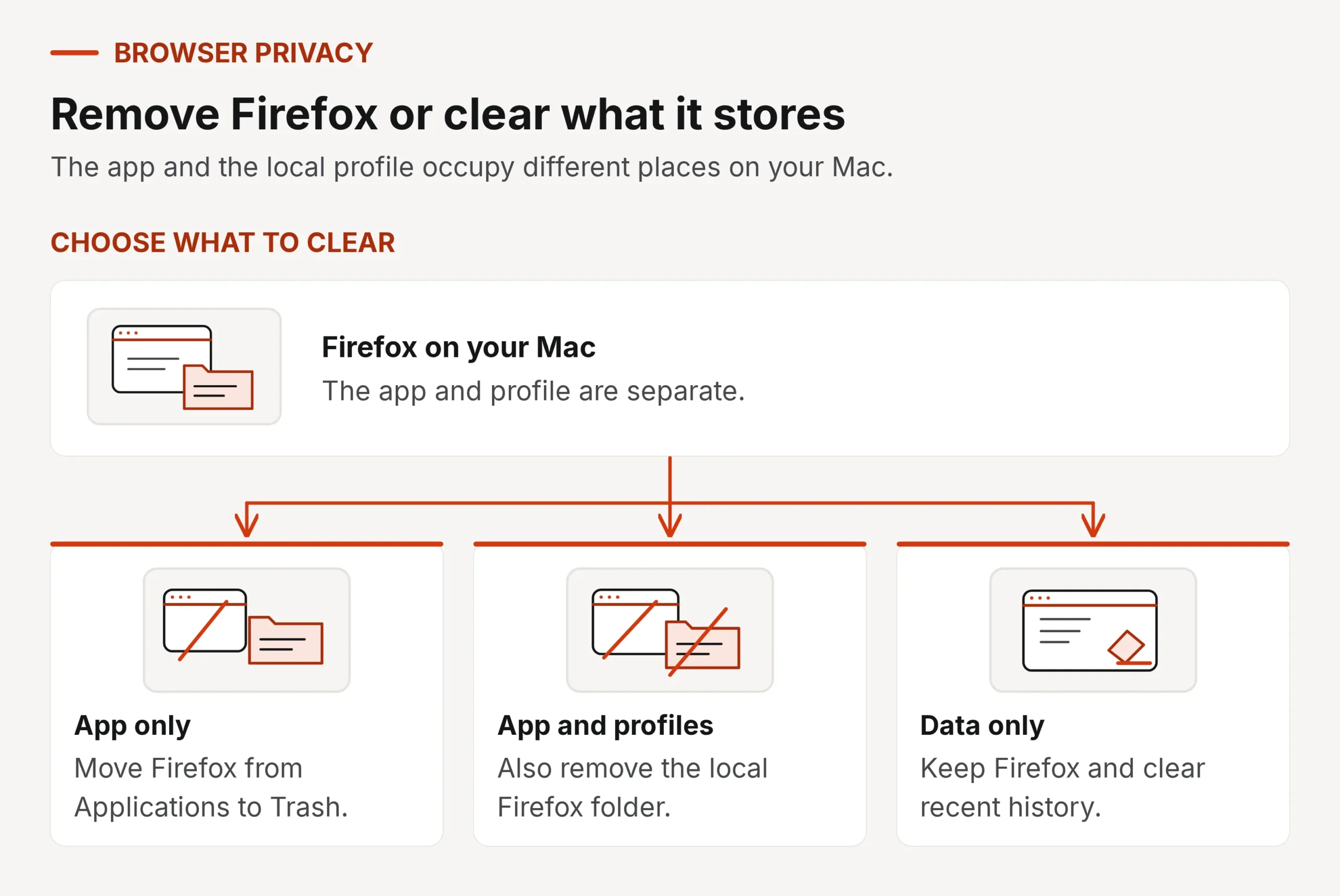
To remove Firefox from a Mac, quit the browser and move Firefox from Applications to the Trash. To clear its local profile, back up any data you want to keep and move the Firefox folder at ~/Library/Application Support/Firefox to the Trash separately. To clear history and cookies while keeping Firefox, use Clear Recent History instead.
- If you already use a macOS uninstaller, review the exact files it selects before clicking remove.
- For history, cookies or temporary files, open History → Clear Recent History , select a time range and check only the categories you want to remove.
- Your bookmarks remain in the Firefox profile until you delete that profile or the bookmarks themselves.
- Check for additional profiles if more than one person has used the same macOS account.
Uninstall the Firefox app
- In Firefox, choose Firefox → Quit Firefox.
- Open Applications in Finder.
- Select Firefox and choose File → Move to Trash.
That removes the application. Firefox keeps its bookmarks, logins, browsing history and other settings in the separate profile, as Mozilla’s uninstall guide explains.
Remove the local Firefox profile
If you plan to reinstall Firefox or move to another browser, locate and back up the profile before removing it. While Firefox is still available, you can open about:support in the address bar and use the button beside Profile Folder to find the active profile. Check for additional profiles if more than one person has used the same macOS account.
- With Firefox closed, open Finder → Go → Go to Folder.
- Enter
~/Library/Application Support/Firefox. Mozilla puts the profiles inside this folder underProfilesby default. - If you want to remove all Firefox profiles for that Mac user, move that Firefox folder to the Trash. Leave other application support folders alone.
- Check that the backup includes anything you still need before you empty the Trash.
A Mac with several macOS accounts can have separate Firefox profiles for each user. The Library path above refers to the currently signed-in Mac user.

When a cleanup tool is useful
If you already use a macOS uninstaller, review the exact files it selects before clicking remove. MacPaw’s guide on how to uninstall Firefox on Mac describes its cleanup workflow. A file list is useful if you want to keep profile data for a later reinstall. Confirm that the tool selected Firefox’s files and that anything you want to keep is backed up.
| What you want | Where to do it |
|---|---|
| Uninstall Firefox and keep your profile | Move Firefox from Applications to the Trash. |
| Remove Firefox and all its local profiles for this Mac user | Remove the app and the Firefox folder under your Library’s Application Support folder. |
| Clear browsing history or site data while keeping Firefox | Choose the relevant categories in Clear Recent History. |
Clear browsing data while keeping Firefox
For history, cookies or temporary files, open History → Clear Recent History, select a time range and check only the categories you want to remove. Clearing site cookies can sign you out of sites. To remove saved passwords, open Firefox Password Manager and delete the saved entries there.
Handle synced data on the right device
If you use Firefox Sync and want to keep those records on your other devices, sign out of your Mozilla account on this Mac before clearing local data. If you plan to give the Mac to someone else, review the local profile separately. Mozilla documents how Sync handles local and server copies.
Frequently asked questions
Does moving Firefox to the Trash delete my bookmarks?
Your bookmarks remain in the Firefox profile until you delete that profile or the bookmarks themselves. Back up the profile before removing it if you want to keep your bookmarks or saved logins.
Will uninstalling Firefox delete files I downloaded?
Files you already saved in Downloads or another folder stay there. Clearing the browser’s download history removes the list Firefox displays. Manage the downloaded files separately in Finder.
Can I reinstall Firefox after removing the profile?
You can download Firefox again and start with a clean profile. If you want your old bookmarks or settings back, restore them from the profile backup you made or sign in to Sync if those data types were synced and still exist.