

Cookies help us display personalized product recommendations and ensure you have great shopping experience.

By using this site, you agree to the Privacy Policy and Terms of Use.
Accept
SmartData CollectiveSmartData Collective
  • Analytics
    AnalyticsShow More
    New Data Analytics Breakthroughs Give eCommerce Startups a Fighting Chance
    New Data Analytics Breakthroughs Give eCommerce Startups a Fighting Chance
    6 Min Read
    How Data Analytics Is Reshaping Patient Financing Decisions
    How Data Analytics Is Reshaping Patient Financing Decisions
    13 Min Read
    business using business intelligence
    How to Use a Competitive Intelligence Dashboard to Turn Market Data Into Smarter Marketing Decisions 
    9 Min Read
    unusual trading activity
    Signal Or Noise? A Decision Tree For Evaluating Unusual Trading Activity
    3 Min Read
    software developer using ai
    How Data Analytics Helps Developers Deliver Better Tech Services
    8 Min Read
  • Big Data
  • BI
  • Exclusive
  • IT
  • Marketing
  • Software
Search
© 2008-25 SmartData Collective. All Rights Reserved.
Reading: Hyper-V on the laptop (Compaq nc6320)
Share
Notification
Font ResizerAa
SmartData CollectiveSmartData Collective
Font ResizerAa
Search
  • About
  • Help
  • Privacy
Follow US
© 2008-23 SmartData Collective. All Rights Reserved.
SmartData Collective > Uncategorized > Hyper-V on the laptop (Compaq nc6320)
Uncategorized

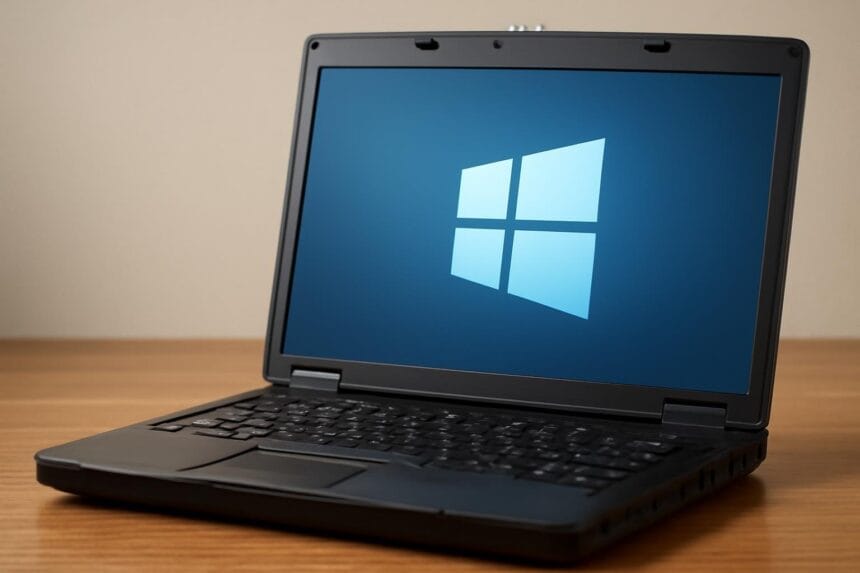
Hyper-V on the laptop (Compaq nc6320)

Editor SDC
Editor SDC
4 Min Read
SHARE

I want to run Hyper-visor and other software (SQL Server 2008) on my laptop. I consider running Team Foundation Server, Windows XP, SQL Server versions, old Visual Studio versions, Visio, BizTalk and others inside Hyper-V images on my laptop. At the same time I want the laptop to function as normally (internet explorer, media player, office, etc).

Hyper-V runs on 64-bit Windows Server 2008. The machine needs to support hardware-assisted virtualization and data execution prevention, and these must be enabled in BIOS.

  1. Download driver packages for Vista x64 and save on flash-drive
  2. Install Windows Server 2008
  3. Rename computer
  4. start control userpasswords2 and enable automatic logon
  5. Install drivers and enable wireless service (not automatic on server)
    1. Install Intel Graphics sp37719
    2. Install “Integrated module with Bluetooth wireless technology for Vista” SP34275 don’t care if it says “no bluetooth device”
    3. Replace wireless driver: \Intel Wireless sp38052a\v64
    4. Add feature “Wireless…”
    5. Connect to internet
    6. Start updates
      get updates for more programs
      automatic
      important updates, only
    7. View available updates
      Add optional: Hyper-V
    8. Install Hyper-V
    9. Add role Hyper-V
    10. The machine is now a Hypervisor. Next steps are to g…


    More Read

    Actuate and OpenText: The Background and Potential Future
    BI: It’s All in Your Head (or Somebody Else’s)
    Moving beyond the industrial society
    Why Bank Online?
    A Proposal Regarding High Tech Immigrants to the US


    I want to run Hyper-visor and other software (SQL Server 2008) on my laptop. I consider running Team Foundation Server, Windows XP, SQL Server versions, old Visual Studio versions, Visio, BizTalk and others inside Hyper-V images on my laptop. At the same time I want the laptop to function as normally (internet explorer, media player, office, etc).

    Hyper-V runs on 64-bit Windows Server 2008. The machine needs to support hardware-assisted virtualization and data execution prevention, and these must be enabled in BIOS.

    1. Download driver packages for Vista x64 and save on flash-drive
    2. Install Windows Server 2008
    3. Rename computer
    4. start control userpasswords2 and enable automatic logon
    5. Install drivers and enable wireless service (not automatic on server)
      1. Install Intel Graphics sp37719
      2. Install “Integrated module with Bluetooth wireless technology for Vista” SP34275 don’t care if it says “no bluetooth device”
      3. Replace wireless driver: \Intel Wireless sp38052a\v64
      4. Add feature “Wireless…”
      5. Connect to internet
      6. Start updates
        get updates for more programs
        automatic
        important updates, only
      7. View available updates
        Add optional: Hyper-V
      8. Install Hyper-V
      9. Add role Hyper-V
      10. The machine is now a Hypervisor. Next steps are to get Windows Server 2008 to act more like a client OS.

        1. Install other drivers
          1. SoundMAX SP36683
          2. Install Feature “Desktop Experience” (Media Player, etc)
          3. Create shortcut “net start vmms” for starting Hyper-V and “net stop vmms” for stopping Hyper-V
          4. Set startup for service “Hyper-V Virtual Machine Management” to manual
          5. stop vmms
          6. Install Virtual PC 2007 (in case I want wireless network from a vm)
          7. Enter product key and Activate windows
          8. Since I have a working version of Windows, this is the time to activate, next step would ideally be to install office. I don’t have office handy (am on vacation), so I install the viewers for Word, PowerPoint and Excel

            1. Word viewer
            2. PowerPoint Viewer
            3. Excel viewer

            I am now ready to install Visual Studio and the servers, first out is SQL Server 2008 rc.

            1. Set up IIS (with all the iis6 stuff)
            2. Set up Windows SharePoint Services 3.0 x64 with Service Pack 1 to run “stand-alone”
            3. (optionally) set up Windows SharePoint Services 3.0 Application Templates – 20070221
            4. Create user ServiceAccount to run all the sql server services
            5. Install SQL (complete) with RS in SharePoint integrated mode
            6. Open firewall (http://go.microsoft.com/fwlink/?LinkId=94001)
              open tcp 1433 (engine), 2383 (ssas), 80 (sp), 135 (ssis), 443 (https), 4022 (service broker)
              udp 1434 (ssas)
              and “notify me when new program blocked”

            Now get all updates.

            Next step is to install Visual Studio, which should be straight-forward.

            OK, I’m off to the beach,
            Gorm

        Share This Article
        Facebook Pinterest LinkedIn
        Share

        Follow us on Facebook

        Latest News

        Why Every Small Business Should Care About an AI Image Generator
        Why Every Small Business Should Care About an AI Image Generator
        Artificial Intelligence Exclusive
        ai for instagram reel marketing
        How AI Is Changing Instagram Reel Marketing
        Artificial Intelligence Exclusive Marketing
        protecting data in public
        The Importance Of Protecting Sensitive Data In Public Services
        Big Data Data Management Exclusive
        New Data Analytics Breakthroughs Give eCommerce Startups a Fighting Chance
        New Data Analytics Breakthroughs Give eCommerce Startups a Fighting Chance
        Analytics Big Data Exclusive

        Stay Connected

        1.2KFollowersLike
        33.7KFollowersFollow
        222FollowersPin

        You Might also Like

        tibbr 3.0: the Missing Screenshots

        2 Min Read

        Business Rules Management – the misunderstood partner to process

        7 Min Read

        Dr. Seuss’s ABC

        2 Min Read

        Cloudsourcing, new options in the cloud

        7 Min Read

        SmartData Collective is one of the largest & trusted community covering technical content about Big Data, BI, Cloud, Analytics, Artificial Intelligence, IoT & more.

        ai in ecommerce
        Artificial Intelligence for eCommerce: A Closer Look
        Artificial Intelligence
        ai is improving the safety of cars
        From Bolts to Bots: How AI Is Fortifying the Automotive Industry
        Artificial Intelligence

        Quick Link

        • About
        • Contact
        • Privacy
        Follow US
        © 2008-25 SmartData Collective. All Rights Reserved.
        Welcome Back!

        Sign in to your account

        Username or Email Address
        Password

        Lost your password?