


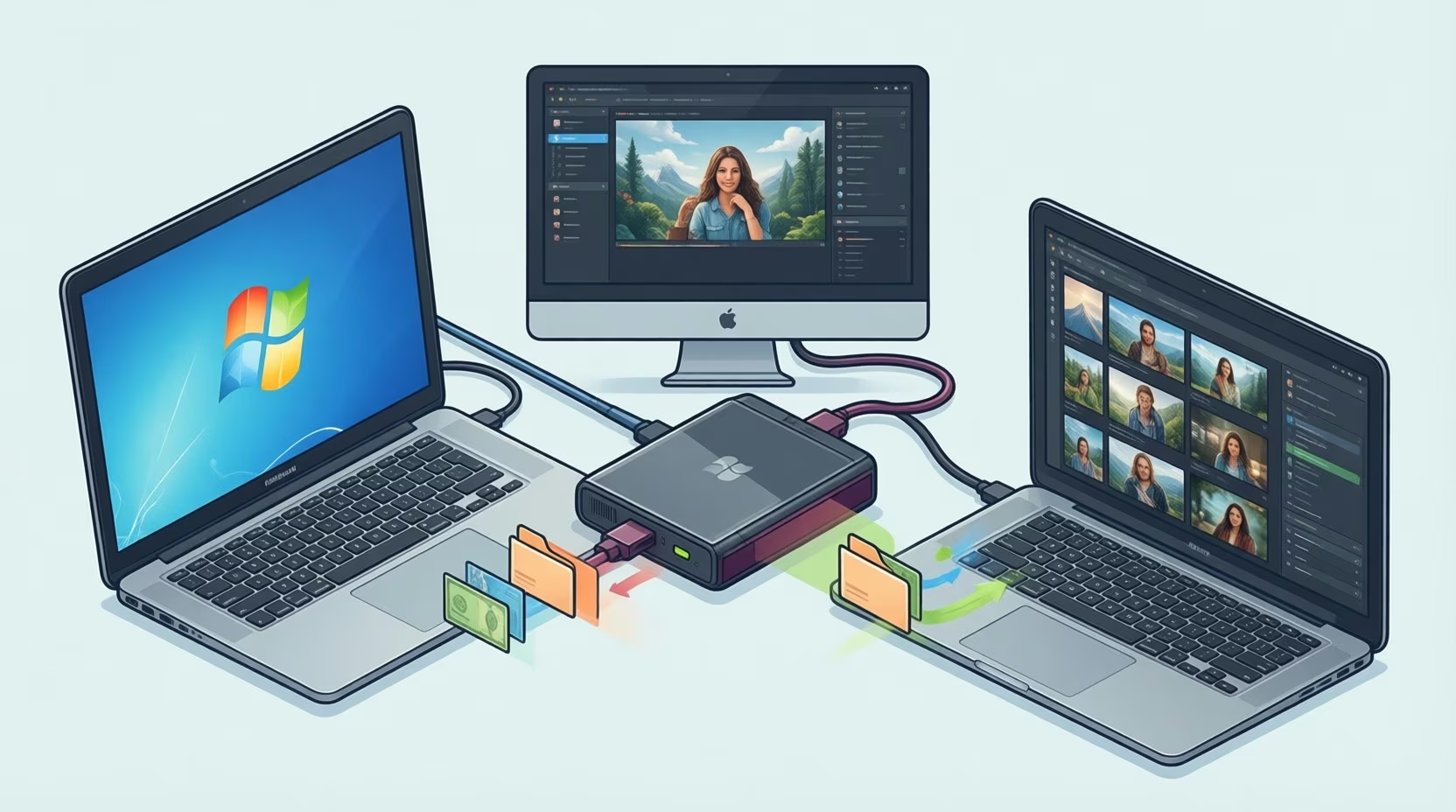
Copying a project onto a USB stick at an office PC and carrying it home to a MacBook seems straightforward. The files open fine. Then a logo needs changing, you save the file, and an error message appears. The problem isn’t always the files themselves. “It’s the format” is often the explanation. File system compatibility sounds boring until a drive blocks your work late at night.

Moving raw photographs or video files between a Mac laptop and a Windows desktop often relies on exFAT. This setup can run smoothly over long periods without an issue. Formatting wipes a drive every time, so copy everything off before changing its file system. Remember that exFAT lacks journaling, so keeping a second backup of client work is mandatory.
https://www.magnific.com/free-photo/standard-quality-control-concept-m_36027725.htm
NTFS on a Mac
A drive formatted as NTFS uses the default Windows file system. Plug it into a Mac and you can read NTFS on Mac without installing anything. The icon shows up on the desktop like any other drive. You can open files and copy them off. That’s where it stops, because macOS mounts these drives as read-only. Most people only find out when a save fails.
The NTFS file system does its job well in everyday Windows workflows. Big files and large drives give it no trouble. It keeps a journal so a power cut mid-write doesn’t wreck the data, and it handles permissions cleanly. What frustrates Mac users is that Apple never added native write support.
More Read

FAT32 and exFAT
Plenty of people dodge the whole mess with an older format. FAT32 shows up in Disk Utility as MS-DOS (FAT), and nearly every device reads it, including cameras and game consoles. Under the standard FAT32 specification, the catch is a 4 GB maximum limit per single file. A long video shoot can fail to copy halfway through even with plenty of free space left on the drive, and transferring files to a format with tighter size restrictions carries a real risk of data loss and corruption.
John is a writer/photographer currently based in Houston, Texas. He’s written on everything from politics to crypto wallets and worked as a photojournalist covering notable events like the Astros Victory Parade and the Day for Night Music Festival. Current hobbies include learning to shoot 35mm film, building Spotify playlists, and working his way through that menacing TBR stack on the nightstand.
John Bogna in FAT32 vs. ExFAT vs. NTFS: Which Format Is Best for Your Storage Drive?If you want a cross-platform file system that both machines can write to, pick exFAT. It has no practical file size problem. The trade-off is no journaling and no built-in encryption, so you shouldn’t trust it with the only copy of anything important.
Frequently Asked Questions
How do I check a drive’s file system format?
Disk Utility on a Mac and Disk Management on Windows show the file system format in a few clicks.
Which file system works across Windows and Mac?
exFAT works on both Windows and Mac without the 4 GB file size limit of FAT32.
Key Takeaways: NTFS, FAT32, exFAT, and Mac/Linux Formats at a Glance
Each file system format has distinct pros and cons depending on which operating systems touch the drive. Comparing operating system and file system cross-compatibility shows where native access works.
| File System | Windows | macOS |
|---|---|---|
| NTFS | Read/Write | Read-only |
| FAT32 | Read/Write | Read/Write |
| exFAT | Read/Write | Read/Write |
| APFS | Unreadable | Read/Write |
Apple Formats on Windows
The problem runs the other way too. A drive set up as APFS, the modern Mac format, shows up on a Windows PC as unreadable. Windows then offers to format it. Click yes and everything on the drive is gone. Drives full of wedding photos, office presentations, and other key files get wiped this way when users miss the format prompt.
To check system compatibility before moving files, inspect the drive’s partition format in your operating system’s built-in disk manager before copying data. Checking the format before moving files helps avoid this trap. Disk Utility on a Mac and Disk Management on Windows both show the file system in a few clicks. Working across IT environments and operating systems gets much easier once that check becomes standard practice for personal and work data alike.
https://www.magnific.com/free-photo/download-information-data-network-concept_18134600.htm
Writing to NTFS
You have four ways to handle an NTFS drive on a Mac. Getting reliable NTFS access on macOS isn’t hard once you know the options.
- A third-party NTFS driver. One option is iBoysoft NTFS for Mac, which is offered through Setapp (check current vendor trial terms before installing). It gives full read and write access while keeping the existing drive data intact.
- Reformatting as exFAT in Disk Utility. It works on both systems, though it wipes the drive, so back up your files first.
- Boot Camp, though only on an Intel Mac. Apple Silicon doesn’t support it, taking this option off the table for newer Mac users.
- The Terminal trick with the fstab file. Be careful with this route. It’s unofficial, and a single typo can leave the drive unable to mount.
A third-party driver makes sense when a USB stick stays on a desk and moves between two computers every week. Setup usually takes only a few minutes. A reformat makes more sense for a drive holding secondary copies of files already stored elsewhere.
Linux supports a wide variety of file systems, with ext4, Btrfs, and XFS serving different production stability and performance needs on Linux hosts.
Choosing a Format for a Drive
When buying a new drive for client files, ask one question first: “Where is it going?” That answers the whole external hard drive compatibility puzzle. If the drive only touches Windows machines, NTFS is fine. If it only touches a Mac, APFS works. If it moves between the two, exFAT is the clear choice unless a single file exceeds what the volume allows.
Moving raw photographs or video files between a Mac laptop and a Windows desktop often relies on exFAT. This setup can run smoothly over long periods without an issue. Formatting wipes a drive every time, so copy everything off before changing its file system. Remember that exFAT lacks journaling, so keeping a second backup of client work is mandatory.
Keeping Cross-Platform Drives Working
Most storage headaches start with the format on the drive. NTFS reads on a Mac without writing natively, the standard FAT32 specification stops at 4 GB per file, and exFAT works on both platforms. Once you know those limits, Windows and macOS file sharing stops being a guessing game. Checking the format in Disk Utility or Disk Management before a drive goes into your bag saves plenty of trouble later.