


Big data has become very important in the graphic design field. As we wrote last month, a number of graphic design tools use machine learning to create higher quality visuals.
Unfortunately, there is a downside to using graphic design tools like Illustrator that rely heavily on big data. Data loss is an all too common problem. If you lose important files, then you need to use the right data recovery solutions to restore them.
Adobe Illustrator is the most popular graphics editor and one of the best Adobe software, but even its popularity can’t protect you from sudden crashes. In some cases, you may even lose an AI file when the computer stopped answering or switched off.
How to avoid such problems? How to recover Illustrator files in case of crash? How to enable autosave and restore any unsaved Illustrator data after the program failure? Read on to learn the answers.

Activate AutoSave and Restore Features to Protect AI Data
These are preventive measures rather than solutions to the problem. Advanced users are well-aware of these features, but beginners who have just downloaded Illustrator for free as a trial version are unlikely to know them.
By using Illustrator built-in tools, anyone can restore an unsaved illustration in case the program or computer crashes. Even if you haven’t faced such problems yet, I recommend activating the autosave function now.
You can easily do it in several simple steps:
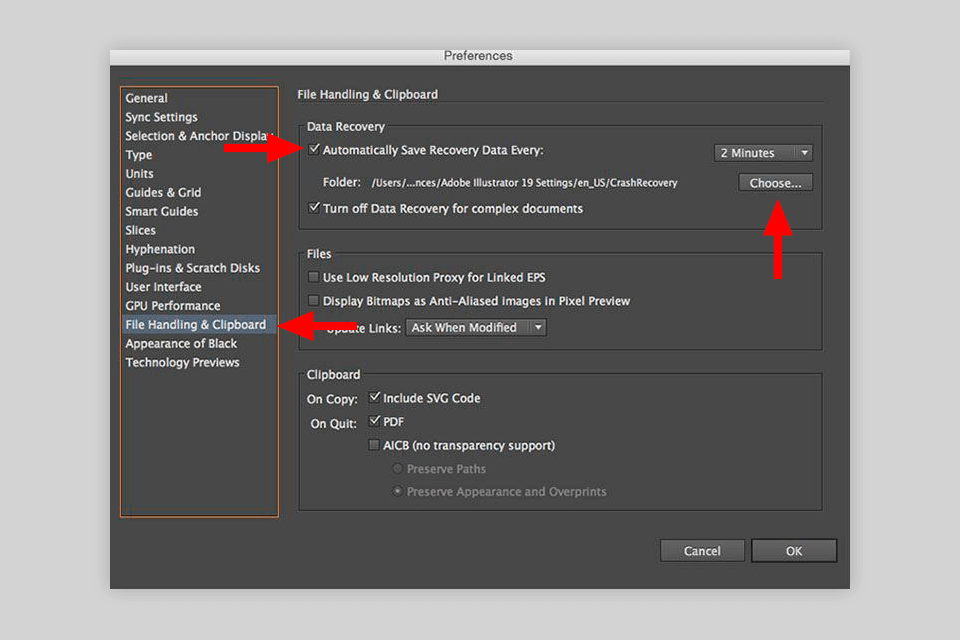
STEP 1. Open “Edit” > “Preferences” > “File Handling & Clipboard”
STEP 2. Tick the box “Automatically Save Recovery Data Every”
STEP 3. Find the Data Recovery section in the opened menu, specify the frequency of automatic data saving for recovery (from 30 seconds to 1 hour), and indicate the folder for storing these copies.
In case of a software failure or sudden crash of Adobe Illustrator, all automatically saved files will be restored once you open the program again.
By the way, using Creative Cloud as data storage is an effective way of preventing file loss. All files will be saved on the cloud that constantly synchronizes with Illustrator.
Method 1. Restoration of an Automatically Saved File
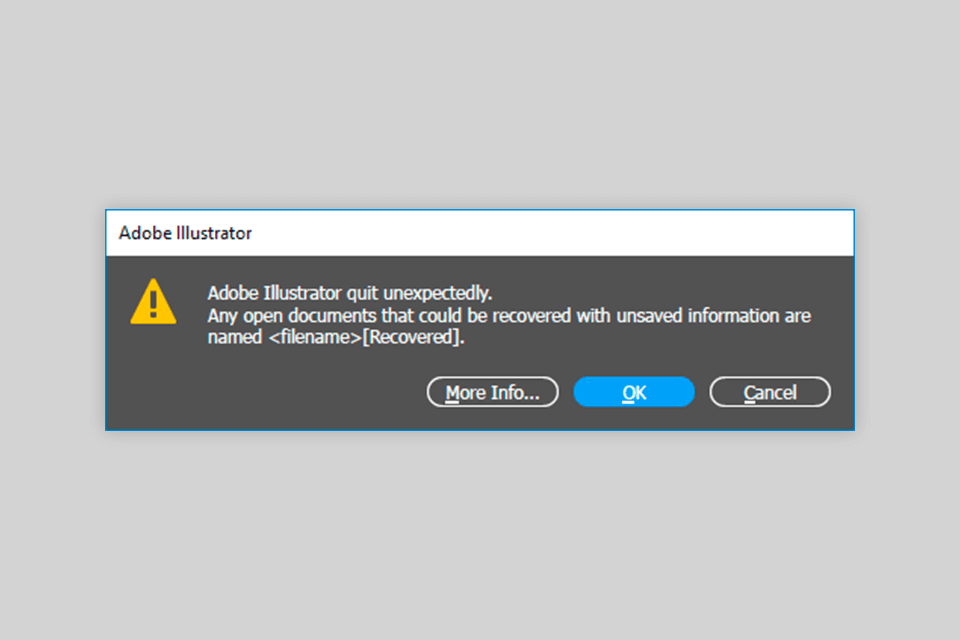
If you have activated an autosave feature in Illustrator, you can be sure that a file will be restored after a sudden crash. In case of a program failure, you can recover the AI-file from the restore section fast and easily.
How to recover Illustrator file by AutoSave:
STEP 1. Restart Illustrator.
STEP 2. There will appear a pop-up message. Choose “More Info”, go to File > Save As, and save the restored file. Keep in mind that the recovered version may not be the one you were working on as the program crashes.
Method 2. Recover Using Revert
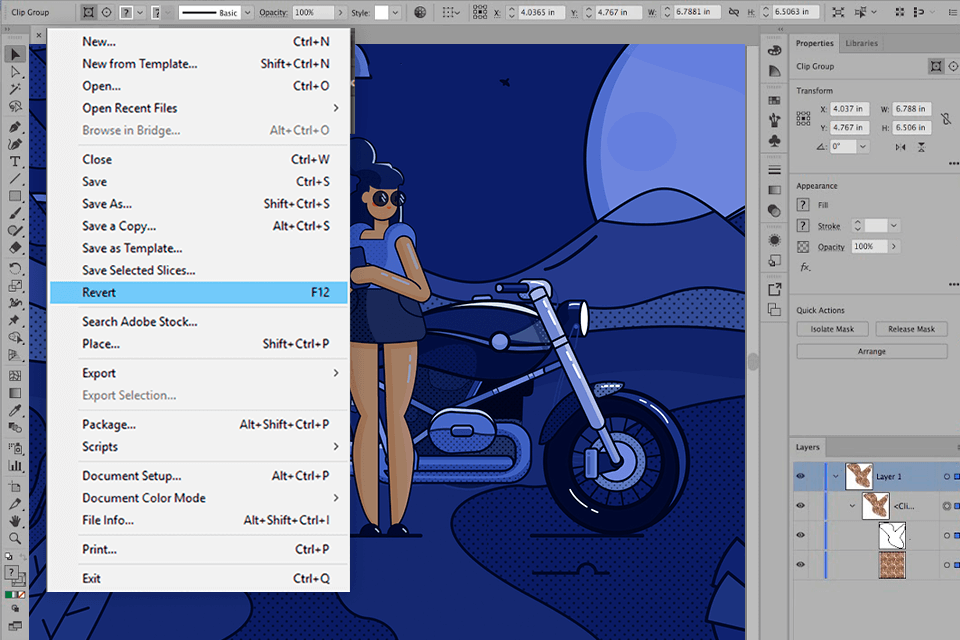
When using an Illustrator for creating projects, the results of your work may displease you. Provided you have saved the file at least once, you can go to File > Revert to bring the previous version of the project back. But keep in mind that all edits you’ve made since opening the file will be deleted.
Method 3. Run a Diagnostics on Illustrator
If Adobe Illustrator has crashed several times in a row, we recommend you launch the diagnostics to detect and fix the problems. When the program suddenly closes again, you will see the instructions on why the crash has occurred. Follow the guidelines to cease these annoying constant crashes.
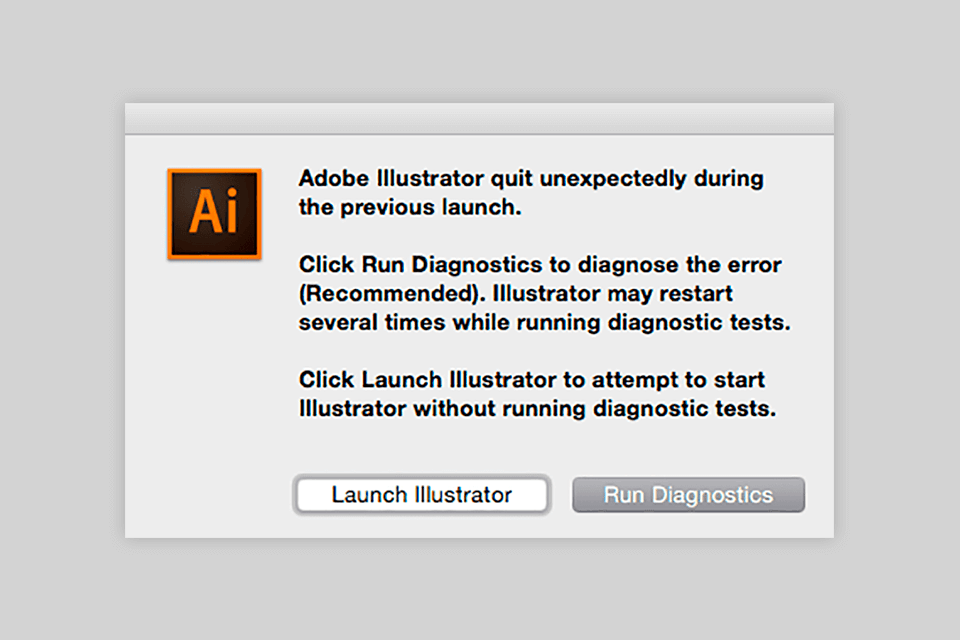
STEP 1. When the program closes unexpectedly, re-open it immediately. There will appear a dialogue box, which asks you whether you want to run diagnostics. Click OK!
STEP 2. Thus, Illustrator will work in a safe mode for detecting the issues that cause failures. The most frequent reasons for incorrect functioning are untimely driver update, plug-in issues, and corrupt files.
STEP 3. Once the diagnostics is completed, you will get recommendations on how to solve the issue of constant crashes. Try each of the offered ways out. Then open Illustrator again and save the restored project.
Method 4. Use Third-Party File Recovery Software
Illustrator file recovery may be not as easy as you’ve expected, as the illustrations created in this program are fairly specific files. If, because of a failure or other reasons, your illustrations were lost, then they can be restored with the help of third-party data recovery software.
We cannot recommend one single data recovery program, since no program can guarantee a 100% successful result. It is a good idea to download several programs, run trial versions (some of them are completely free), and check their performance. EaseUS Data Recovery Wizard, Recuva, and Disk Drill are professional programs for recovering data fast and effectively.
You may also try web-based services that can efficiently handle corrupted files. As such programs don’t scan your hard drive-in search of damaged files, you need to identify them beforehand. Recovery Toolbox online file repair can solve most problems.
By the way, if you need a simple-to-use instrument, and you don’t have time and desire to deal with Adobe Illustrator failures, you can use online creative design software instead. Such programs usually keep all the data on the cloud storage and they aren’t subject to crashes.