


Using TIBCO Spotfire to Analyze Google Analytics Data
At one of the websites where I have been tracking traffic for many years using Google Analytics (GA) I wanted to do analysis beyond what GA would allow. I present in this post a way of extracting data out of GA and importing it into an anlysis tool of my choice (TIBCO Spotfire), but I am sure you could use other tools as well like SPSS, SAS, Tableau, Excel etc. This post assumes a level of comfort using GA amongst its readers.
Using TIBCO Spotfire to Analyze Google Analytics Data
At one of the websites where I have been tracking traffic for many years using Google Analytics (GA) I wanted to do analysis beyond what GA would allow. I present in this post a way of extracting data out of GA and importing it into an anlysis tool of my choice (TIBCO Spotfire), but I am sure you could use other tools as well like SPSS, SAS, Tableau, Excel etc. This post assumes a level of comfort using GA amongst its readers.
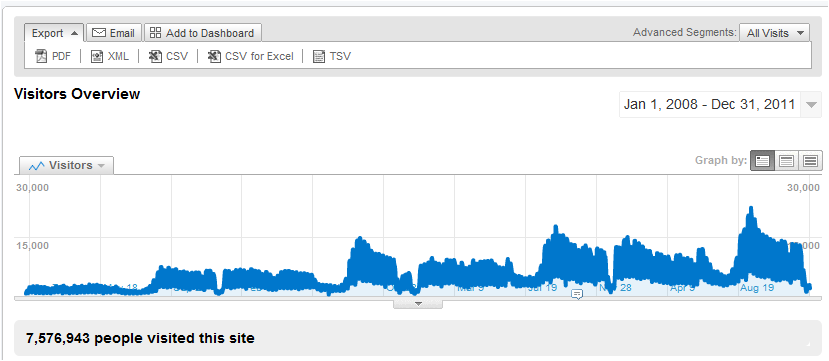
I chose the old version of GA for the purpose extracting data. I extracted data for four years by
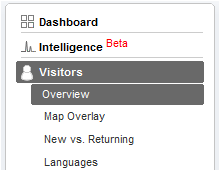
- Clicking on Visitors | Overview on the left menu of GA
- Changing the date range to (1/1/2008-12/31/2011)
- I then clicked on Export and chose “CSV for Excel”. It created a CSV file with a generic name like Analytics_www.yoursite.com_200811-201112_(VisitorsOverviewReport).csv in the browsers default Download directory.
Now that I have the raw data I will move to TIBCO Spotfire. But before I do so I have to clean up and massage the data to make it usable in Spotfire. Clean up and massaging involved the following steps:
- I opened the CSV file in Excel.
- Removed the 9 rows at the top and 10 rows at the bottom to be left with
- Used an Excel formula to remove day-of-week at the beginning and convert to date by using the formula =Datevalue(SUBSTITUTE(A13,LEFT(A2, SEARCH(“,”,A2)),””))

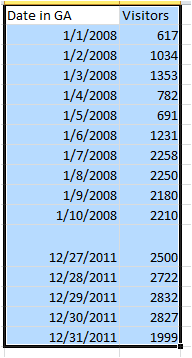
We now have data which should look like:
Now that we have the data ready we open this Excel file in Spotfire.
- File | Open | {Your Excel File} | {Correct Worksheet} |
- Ensure that the “Date in GA” is imported as a Date field, and the Visitors as an Integer.
Using the power of Spotfire, very quickly we can get some comparisons, here are a few:
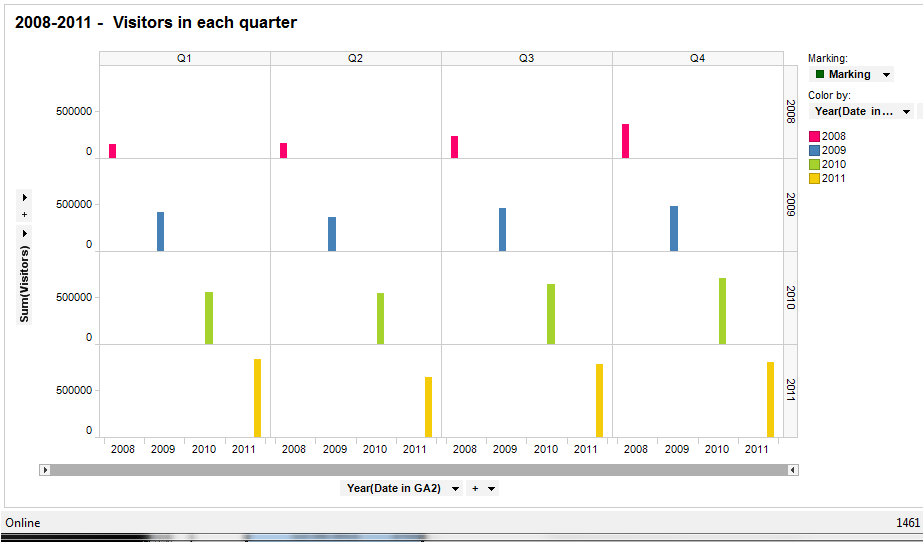
This indicates that the rate of growth in traffic in Q1 over the foour years has been faster than in the other 3 quarters.
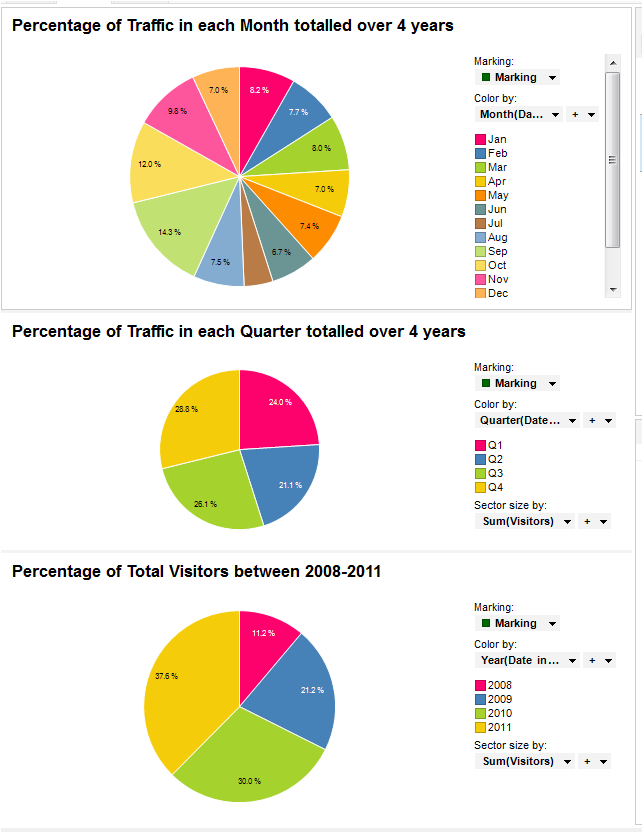
Spotfire has the ability to generate such charts and also do drill-down with just a few clicks. The pie-charts above indicate that September is usually the busiest month for the website with 14.3% of the traffic. Most traffic at the site is during the fourth quarter. Finally there has been significant increase in traffic year after year from 2008 at 11.2% to 2011 at 37.6%.
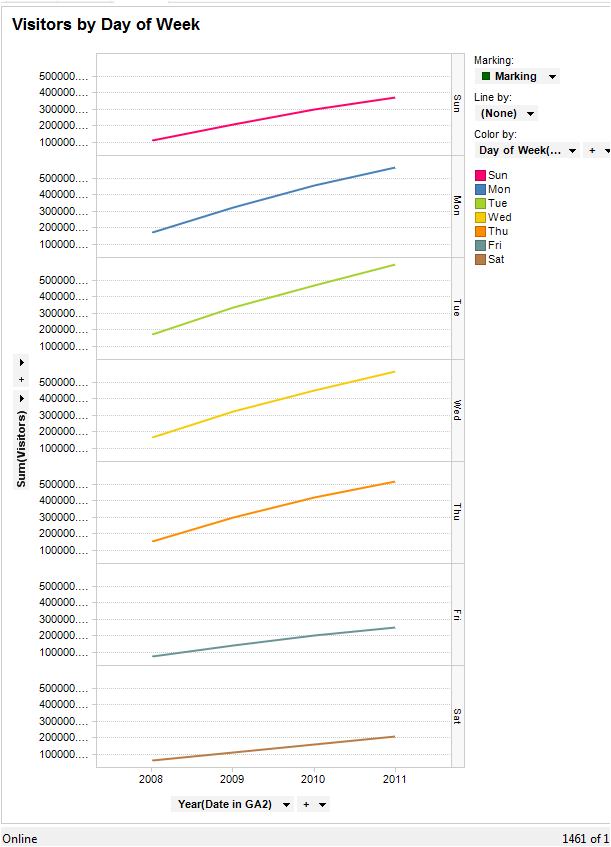
Mondays, Tuesdays and Wednesdays the traffic at the site is at a peak, Saturday being the quietest.
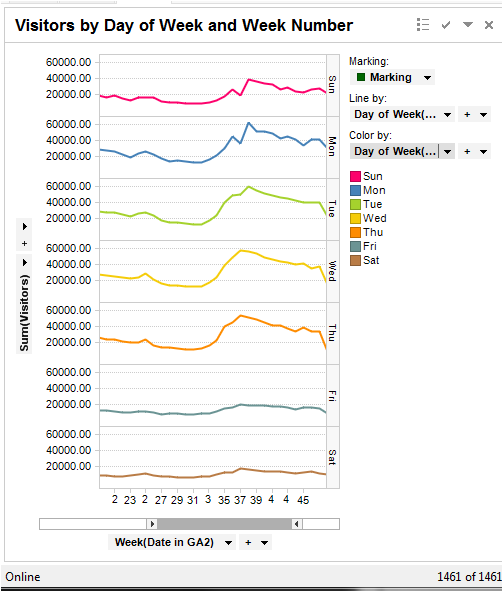
Note that by using a Zoomer Slide we have restricted the view to between weeks 20 and 45. We notice that consistently that number of visitors increases during weeks 35 to 37, with a peak on week 37. Several marketing campaigns can be targeted during this period to get the best conversion.
All these charts were drawn in TIBCO Spotfire using few clicks and took no more than couple minutes each. This is just the “tip of the iceberg”. We can extract data from Google Analytics under different categories like geography, keywords, browser used, screen resolutions etc. Spotfire can then provide in-depth segmentation and analysis of this data. While GA does provide some capability for segmentation and analysis, using a specialised tool for statistical analysis like TIBCO Spotfire really makes sense.
I am a regular blogger in this network. You can see some of my other blogs on Social media here:
http://socialmediatoday.com/posts/published/user/117154